Improvement Plan
A sequenced three-part roadmap that puts measurement and consolidation before more publishing.

Part 1Complete the immediate technical priorities
Use existing data for a more exact report
Search Console and GA4 data was not available for this audit. Reviewing these reports will show which searches and pages bring the right visitors and which visits become real inquiries.
What to look forSearch ConsoleQueries · impressions · clicks · landing pages · countries · indexing issuesGA4Organic landing pages · downloads · application starts · forms · booked calls, where recordedReview or export the reports
Use the connected account reports to add exact search and inquiry results to the audit.
Review or export the reports yourself
- Open Search Console Performance, select the
yanaimmis.comproperty and the intended date range, then review or export Queries, Pages, Countries, clicks, and impressions. - Open Google Analytics and review organic landing pages plus downloads, application starts, forms, or booked calls where those events are recorded. Export the same date range for comparison.
- Open Search Console Performance, select the
Keep one homepage, about page, and application page
Each purpose currently has competing URLs. Keeping the fuller page and redirecting its duplicate concentrates links and search signals on one address instead of splitting them.
Homepageyanaimmis.com/keep/home · /study-abroadredirectAbout/about-mekeep/learn-about-meredirectApplication/apply-to-any-university-and-country-herekeep/applicationredirectSet the exact surviving pages and redirects
Preserve any unique useful copy, then make every link lead directly to the selected page.
- In Pages, hover the page that should become the root homepage and click its gear icon. Scroll to Set as Homepage, click it, and confirm. Keep
https://www.yanaimmis.com/as the homepage address. - Before retiring anything, copy any unique useful content from
/homeand/study-abroadinto the root homepage; from/learn-about-meinto/about-me; and from/applicationinto/apply-to-any-university-and-country-here. - For each retired page, open its gear → General; disable it or move/delete it only after its replacement is ready.
- Open Settings → Developer Tools → URL Mappings. Add one mapping per line:
/home -> / 301,/study-abroad -> / 301,/learn-about-me -> /about-me 301, and/application -> /apply-to-any-university-and-country-here 301. Click Save. - Update navigation buttons and text links so they point directly to
/,/about-me, and/apply-to-any-university-and-country-here.
Confirm the four old URLs redirect to the chosen pages
Run these checks after the URL mappings are saved. They confirm that visitors and search engines using an old address reach the intended replacement without an error or an extra redirect.
/home→//study-abroad→//learn-about-me→/about-me/application→/apply-to-any-university-and-country-here- Open a private browser window so an old cached page does not hide a problem.
- Paste
https://www.yanaimmis.com/home. It should change once tohttps://www.yanaimmis.com/. Repeat with/study-abroad; it should also end at the homepage. - Paste
https://www.yanaimmis.com/learn-about-me. It should change once tohttps://www.yanaimmis.com/about-me. - Paste
https://www.yanaimmis.com/application. It should change once tohttps://www.yanaimmis.com/apply-to-any-university-and-country-here. - On each final page, check the heading, images, navigation, buttons, and forms. The old address should not remain in the browser bar, pass through another page, or display an error.
- Open the live sitemap. Squarespace updates it automatically, sometimes immediately and sometimes within 24 hours. Confirm it lists the homepage,
/about-me, and/apply-to-any-university-and-country-here, but no longer lists the four retired addresses. - In Google Search Console, open URL Inspection. Inspect the three chosen public URLs and request indexing after the sitemap is correct. Google can continue showing an old address until it recrawls the redirect.
Squarespace limitation: the root
/cannot be redirected. Squarespace generates canonical tags and the sitemap automatically; do not inject a second canonical tag. Consolidate with the homepage setting, surviving pages, direct internal links, and 301 redirects.Finished when: all four old addresses make one direct jump to the correct page, the three chosen addresses load normally, and the sitemap contains only the chosen versions.
Set a homepageURL mappingsAutomatic sitemapGoogle URL Inspection
- In Pages, hover the page that should become the root homepage and click its gear icon. Scroll to Set as Homepage, click it, and confirm. Keep
Choose how missing pages should appear
Nonexistent addresses currently return the correct 404 signal but display the homepage. You can keep that behavior or use a dedicated message if you want visitors to know what happened and see clear ways to continue.
Current→/page-that-does-not-existHomepage appearsOptionalPage not foundHome · Blog · Contact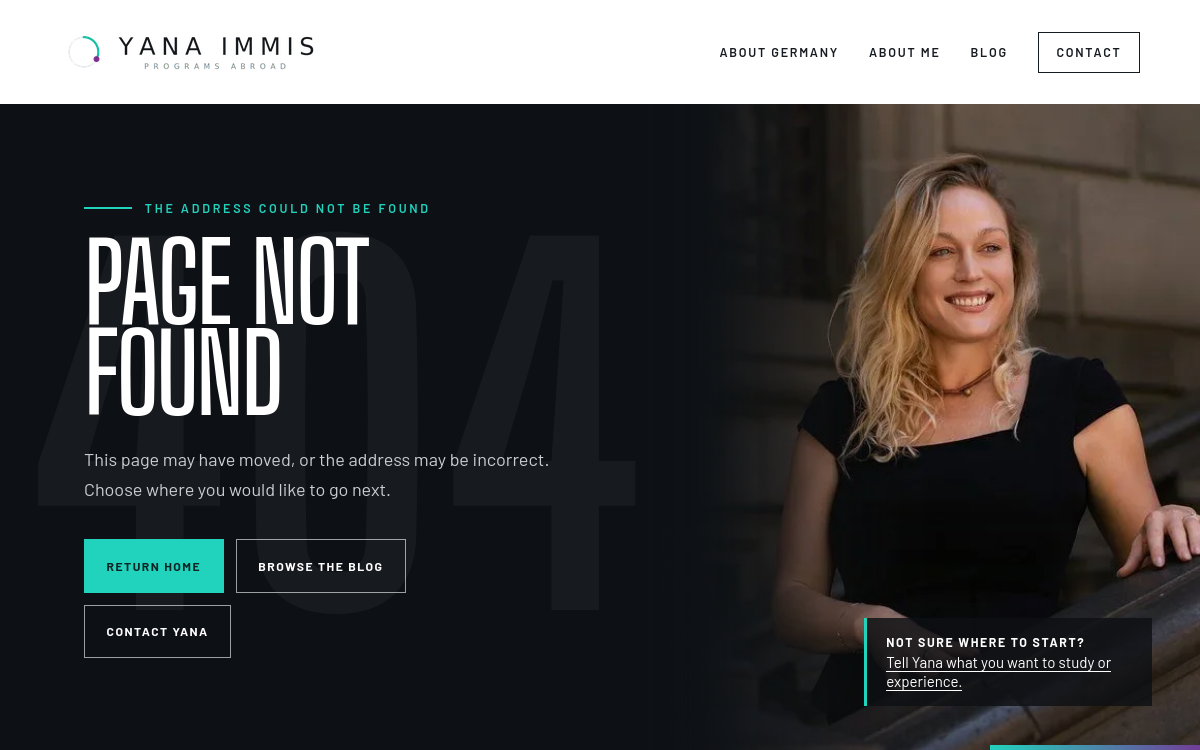 404 page designOpen the full example ↗
Add a dedicated missing-page message
Use these steps only if you choose this option; keep the working HTTP 404 status.
- In Pages, create a new blank page with a plain “Page not found” heading, one short explanation, and buttons to the homepage, blog, and contact page.
- Move this page into Not Linked.
- At the bottom of Pages, open System Pages → 404 Page.
- Choose the new page from the dropdown and click Save.
Squarespace note: a custom 404 can be reported as a “soft 404” in Search Console even when visitors benefit from it. Keep the copy unmistakably about a missing URL and monitor it there.
Verify: open a made-up URL in a private window. It should visibly say the page was not found, offer recovery links, and still return HTTP 404.
Give every page a clear heading order
Use a clear main heading, then organize major sections with H2s and subsections with H3s. This helps readers and screen-reader users understand the page; it is not an “exactly one H1” Google rule.
H1Programs Abroad for Any AgeH2Choose your destinationH3Study in the United KingdomCorrect the heading structure page by page
Use the inventory to find pages with no main heading or several competing main headings.
Open headings for all 198 sitemap pages.
- Open Pages → the affected page → Edit.
- Click or double-click the text block, select the line, and open the Format dropdown in the text toolbar.
- Choose Heading 1 for the page’s clear main topic. Use Heading 2 for major sections, Heading 3 for subsections, and Paragraph for ordinary copy.
- Remove empty heading blocks and do not choose heading styles only to make text visually larger.
- Click outside the block, then click Save.
Why this is scoped carefully: Google does not impose a one-H1 ranking rule. This work improves clarity, scanning, and screen-reader navigation; it should not flatten deliberate article structure.
Verify: reopen the public page and confirm the visible hierarchy matches the page outline in the crawl table.
Make search titles and descriptions distinct
Resolve missing, repeated, and overly long fields while preserving clear ones. These labels help people choose the right result and help search engines distinguish pages with similar subjects.
See titles and descriptions for all 198 pages →www.yanaimmis.com › study-abroadStudy Abroad Guidance for Every Age | Yana ImmisChoose a country, university, and application route with independent guidance from Yana Immis.
Edit page and blog titles and descriptions
Work from the full crawl table so every flagged URL is accounted for.
Open the complete 198-page metadata table and the reconciled issue groups.
Normal pages
- Open Pages, hover the page, and click the gear icon.
- Open SEO. Edit SEO Title and SEO Description, then click Save.
Blog posts
- Open Pages → the blog, hover the post, and click Edit.
- Click the top-right gear → SEO. Edit SEO Title and SEO Description, then click Save. If the item is still a draft, set its status to Published only when it is ready.
Homepage
- Open Marketing → SEO / AI Visibility → SEO Settings → Search Appearance → Home.
- Edit SEO Title Format and SEO Site Description, then click Save. Keep the page/item variables in the Pages and Items formats so individual names do not disappear.
Verify: reload the public page, check the browser-tab title, and use View Source to confirm one description and one canonical. Google may rewrite or cache result wording, so a saved edit will not appear in search immediately.
Make the site identity consistent everywhere
Align business details, favicon, share images, and social text. Consistent information helps search systems connect the site to the same organization and gives shared links a recognizable preview.
 Yana ImmisSame name and contact detailsStudy abroad with Yana1200 × 630 share image
Update the favicon, share images, and social text
Use native settings first; networks can still crop, truncate, or cache a preview.
Favicon
- Open Squarespace’s Favicon panel.
- Click the image uploader and choose a square PNG between 100 and 300 pixels and no larger than 100 KB; 144×144 gives browsers a sharper source to resize. WebP is not the problem—the current 32×32 file simply contains fewer pixels, and neither size nor format directly improves rankings.
- Add an optional dark-mode alternate, wait for the upload to finish, then click Save.
Share images
- Prepare a 1200×630-pixel image, the recommended size for a clear landscape preview on major social and messaging services. Keep important faces, logos, and words away from the edges because each service may crop the image differently.
- For the sitewide fallback, open Squarespace’s Social Sharing panel → click + → upload or select the image → Save.
- For a normal page: open Pages → hover the page → click its gear → Social → Upload an Image → Save.
- For a blog post: open Pages → the blog → hover the post → Edit → open the post settings → Social → upload the Alternate Social Sharing Image → Save.
No separate native Facebook/X text field: Squarespace usually supplies page/post SEO title and description; the homepage uses its title format and SEO site description. LinkedIn may show only the title. Networks decide the final crop, truncation, and cached version.
Verify: test the public URL in the Facebook Sharing Debugger, LinkedIn Post Inspector, and an X post composer. Confirm the image loads over HTTPS.
Align business data without duplicating Squarespace output
Correct native business information before adding custom code.
- Open Settings → Selling → Business Information.
- Review the business name, contact details, location, and hours, then click Save.
- Only if required fields remain unavailable, prepare one valid JSON-LD block. For sitewide code, open Settings → Developer Tools → Code Injection and paste it in Header. For one page, open the page gear → Advanced → Page Header Code Injection. Click Save.
Advanced-code limitation: Code Injection depends on the Squarespace plan, and Squarespace does not troubleshoot custom code. Never add a second canonical or duplicate Organization/LocalBusiness record. A developer should merge and validate any custom schema.
Verify: test the public URL in the Google Rich Results Test and Schema.org Validator, and check the source contains one consistent business record.
Improve the slow mobile first view
For the pages that need mobile speed improvement, create a duplicate page that is hidden from navigation and search, then compare it with the current page in Google PageSpeed Insights. When the test copy reaches the result you want and everything still works, give it the original page’s URL and navigation position so it becomes the live version visitors use.
Mobile score52 average → 90+Current average → idealDesktop score81 average → 90+Current average → idealMobile LCP14.7–15.8 s → ≤2.5 sCurrent range → idealMobile blocking time130–380 ms → ≤200 msCurrent range → idealDuplicate page→Edit hidden copy→Test three times→Keep the better versionDuplicate, improve, test, and replace the page
Use this workflow to test page-level changes without replacing the current public page first.
1. Make a test copy that is not in the site menu
- Open Pages, hover the page you want to improve, and click its gear icon.
- Scroll down and click Duplicate Page. Squarespace creates a copy in Not Linked; leave it there so it does not appear in the site menu.
- Open the copy’s gear → General. Give it a temporary URL slug such as
homepage-speed-testorabout-me-speed-test, then click Save. - Open the copy’s gear → SEO and enable Hide Page from Search Results, then save. Keep the page enabled and do not password-protect it while testing because Google PageSpeed Insights must be able to open the URL.
- Copy the complete test address, such as
https://www.yanaimmis.com/homepage-speed-test. Do not add this address to navigation, buttons, articles, or social posts.
2. Choose the quicker image option or the manual option
- Free or paid TinySEO: open the official Squarespace extension listing → Connect to Site → sign in → choose the Yana Immis site → approve the requested access. Keep copies of the original image files. Start with one large image used only on the test page, run the extension’s image optimization, save, and retest before processing more. The extension is third-party software and its controls may change.
- Manual: resize each replacement to the dimensions actually needed, ideally 1500–2500 pixels wide, compress it to under 500 KB, and upload the new copy to the duplicated page. Squarespace will normally deliver it as WebP automatically.
- Whichever option you use, keep the whole page at 5 MB or less—about 1 MB is safest on cellular—with no more than 60 blocks or 50 images in one gallery.
3. Change one type of page content at a time
- Open the duplicated page → Edit. Start with content visible before a visitor scrolls: replace an oversized image with its optimized copy, remove an unnecessary video background, or remove a duplicate gallery, social widget, map, or embed.
- Click Save after one type of change. Test before making the next type of change so you can tell what actually helped.
- The live homepage currently contains 55 script elements, 245 image elements, and about 451 KB of uncompressed HTML. These counts are clues, not scores: concentrate on media and embeds the page does not need before removing useful content.
- Do not remove sitewide code while testing only a duplicate page. Changes under Settings → Developer Tools → Code Injection affect the live site too. First record each script’s owner and purpose; test a sitewide removal separately with the person responsible for the form, booking tool, analytics, chat, or other integration.
4. Test the public test address
- Open Google PageSpeed Insights, paste the complete temporary test address, and click Analyze.
- Select Mobile. Record the Performance score, Largest Contentful Paint (when the main content appears), Cumulative Layout Shift (how much the page moves while loading), and Total Blocking Time (how long page work can delay interaction). Read Opportunities and Diagnostics for the files or page elements causing the most delay.
- Run the test three times because results vary. Use the middle result rather than the single best result, and compare it with the same three-test method on the current live page.
- Use these targets: a PageSpeed score of 90 or higher, Largest Contentful Paint of 2.5 seconds or less, Cumulative Layout Shift of 0.10 or less, and Total Blocking Time of 200 milliseconds or less. If real-user Interaction to Next Paint data appears, the ideal is 200 milliseconds or less. If the ideal is not immediately possible, keep changes only when repeated tests clearly improve without breaking the page.
- Open the test page on a phone and computer. Check its navigation, buttons, forms, images, text, and any booking or application step. A higher score is not useful if something visitors need stops working.
5. Put the tested version at the original public address
- For an ordinary page: write down its current slug—for example,
about-me. In Pages, move the old page to Not Linked, change its slug to a temporary backup such asabout-me-before-speed-update, and keep it hidden from search. Then change the tested copy’s slug fromabout-me-speed-testto the originalabout-me, turn off Hide Page from Search Results, and drag the tested page into the old page’s navigation position. - For the homepage: open the tested copy’s gear → SEO, turn off Hide Page from Search Results, and save. Reopen its settings, scroll to Set as Homepage, click it, and confirm. Squarespace will then serve the tested page at
https://www.yanaimmis.com/. Move the previous homepage to Not Linked and keep it hidden while you verify the replacement. - Update any navigation item, button, or image link that still points to the temporary test or backup page. The finished public page should use the original address, so visitors and Google do not have to learn a new URL.
- Open the original public address in a private browser window and repeat the three PageSpeed mobile tests. If the public result and page functions are correct, keep the old copy only as long as you need it for recovery, then remove it.
- If the temporary test address was ever shared or indexed, open Settings → Developer Tools → URL Mappings and add a 301 mapping such as
/about-me-speed-test -> /about-me 301, then click Save.
Squarespace limits: Squarespace platform scripts and hosting cannot be removed. Duplicating a page isolates page content and layout changes, but it does not isolate sitewide styles, Code Injection, extensions, or integrations.
Finished when: the original public URL displays the tested page, important features work, three repeated mobile tests show the intended improvement, and no navigation link opens the temporary test or backup address.
Google PageSpeed InsightsSquarespace: duplicate a pageSquarespace: reduce page sizeSquarespace: set a homepageSquarespace: URL mappings
Part 2Refresh content and build guided journeys
Group related guidance into topic hubs
Bring country choice, university choice, funding, visas, accommodation, and employability into clear starting pages. Visitors can follow a path instead of searching a large article library one post at a time.
Study in CanadaChoose a universityVisa guidanceFunding optionsApply with YanaCreate a topic hub
Create and publish a useful topic landing page.
- Open Pages. To reuse a proven layout, hover the page → gear → Duplicate Page → Confirm; otherwise click + and choose Blank Page. Rename the new hub immediately and keep it in Not Linked while building.
- Open the page → Edit → Add Section → Blank. Click Add Block and add one Text block for the introduction.
- If Summary appears under Add Block, add it → pencil icon → Content → Select a Page → choose the blog or collection; then use Design for a readable list or grid. If Summary is unavailable in that section, use an Auto Layout section or repeat a simple image, text, and button group for the selected links.
- Add separate text or button links for services, institutions, and success stories that are not in the chosen collection. Remove every copied block that does not belong to this hub.
- Click Save. Return to Pages → hub gear → SEO, enter the SEO title and description, and click Save again.
Verify: open the public hub in a private window. Confirm every card and button reaches the intended page and the hub works at phone width.
Keep only useful category and tag pages searchable
Keep archive pages that collect enough distinct, related material to help a visitor. Thin or overlapping archives create extra search results that add little and can compete with stronger pages.
Keep/blog/category/NewsDistinct, maintained collectionReview/blog/tag/studyThin or overlaps another archiveReview category and tag archive pages
Keep useful topic destinations; hide or consolidate thin overlaps.
Open all 31 category and tag archives.
- For a post, open Pages → the blog → hover the post → … → Settings → Options.
- Under Categories or Tags, select or type the intended term, press Enter, then click Save.
- To rename, merge, or delete a term, hover the blog in Pages → gear → Advanced → Manage Categories or Manage Tags. Select the term, choose the available action, confirm, then save.
- To hide archive combinations for that blog, open the blog’s gear → SEO → Hide from search engines. Use the archive/filtered-page control shown there. Leave All pages in this collection off unless you intend to hide the blog landing page and every post too.
Squarespace limitation: individual category/tag title formats cannot be customized natively. Terms are managed separately in each collection, and renaming or merging one does not update old hand-written links or Summary Block filters; repair those manually.
Verify: open the archive publicly, check whether it still belongs in the sitemap, and inspect important old links after a rename or merge.
Show when time-sensitive guidance was reviewed
On articles about visas, finance, permits, or regulations, a short review date and direct links to official rules help readers confirm that requirements are current.
Example only · Visa guideLast reviewed September 2026 · Yana ImmisOfficial government visa guidance ↗Add the review note and source links in Squarespace
Use this format on articles where rules, dates, or fees may change.
- Open Pages → the blog → open the relevant post → Edit.
- Near the introduction, add a short visible line such as “Last reviewed September 2026 · Yana Immis.”
- Select the text that refers to an official rule → click the link icon → Web Address → paste the official government or institution URL. Opening a new window is optional; leave it off when staying in the same tab is simpler for the reader.
- Click Save. If the review changed the article’s focus, open the post settings → SEO and update the title or description so they still match the page.
Verify: open the public article and confirm the review note is visible and each official-source link opens the intended page.
Connect articles to the next useful page
Link each article to its hub, a relevant story, the matching service, and a clear next step. This helps visitors continue their research and helps search engines understand how related pages fit together.
Canada article→Canada hub→Student story→Application pageAdd internal text and image links
Add clear links in text and images.
- Open the source page or post → Edit. In a text block, select words that clearly name the destination, click the link icon, choose Page, search for and select the page, then click Save in the link editor.
- For an image block, click the image → pencil icon → Content → Link. Choose Page, select the destination, and leave Open in New Window off for an internal page.
- Click the page-level Save.
Verify: open the public page and test each new link. It should go directly to the final HTTPS URL without an extra redirect.
Describe meaningful images and linked media
Add useful alternative text and clear link destinations, while leaving decorative images empty. This lets screen-reader users understand information that would otherwise exist only visually.
Instead of:image123.jpg→Use:Yana advising a student at an international education fairAdd image descriptions, captions, and usable gallery links
Describe images and make linked media understandable.
- For an image block, open the page → Edit → click the image → pencil icon → Content. Enter concise Alt Text that states the image’s useful meaning; leave it empty only when the image adds no information. Add a caption only when visitors need visible context.
- If that image is clickable, use Content → Link to choose the destination. The alt text should describe the image itself; nearby visible link text should explain where the link goes.
- For a gallery section, click Edit Section → Content. Open each image’s settings, add its available alt-text/description field and caption, then repeat for every meaningful image.
- Open the gallery’s Design settings. Keep navigation controls visible when visitors need them, close the editor, and click the page-level Save.
Squarespace limitations: field names differ between image blocks, gallery blocks, gallery sections, and collection images. Squarespace supplies gallery arrow/button code and responsive image variants; the normal editor does not provide custom accessible-name or loading-priority fields for those controls. If a keyboard or screen-reader test still finds an unnamed control, a developer must assess custom code, which Squarespace does not support.
Verify: open the public page, use Tab and Enter through every linked image and gallery control, and confirm the visible focus order, destinations, captions, and meaningful image text.
Part 3Strengthen identity, authority, and proven demand
Get high-quality backlinks
Earn relevant links by offering useful, original contributions to organizations whose audiences overlap with Yana’s study-abroad expertise. Start with the complete outreach table of 105 prospects, website links, contact routes, and pitch ideas.
Useful original resource→ tailored pitch →Relevant editorial linkRun a quality-first outreach campaign
Use the prospect table to earn relevant editorial and partner links.
- Open the backlink outreach table. Filter by country, audience, or topic and select a small first batch whose readers closely match Yana’s services.
- Open each linked website and verify the current editor, submission instructions, accepted format, commercial terms, and recent coverage. Record any changes before sending a pitch.
- Choose one of the three listed pitch ideas, adapt it to the publication’s audience, and link only to a genuinely useful Yana page or original resource. State Yana’s relevant experience and disclose any commercial relationship.
- Track the date, response, published URL, referral visits, and qualified inquiries. Follow up once when appropriate, then move on rather than sending repeated messages.
Quality rule: relevance and editorial usefulness matter more than Domain Authority alone. Paid advertorials may provide exposure, but they should be clearly disclosed and should not be purchased to pass ranking credit.
Verify: confirm every earned mention is live, accurate, relevant, and points to the intended page; then monitor referral traffic and inquiries rather than counting links alone.
Expand topics with proven visitor demand
Use Search Console and inquiry data to decide which existing or suggested subjects deserve deeper guides.
estudiar en el extranjeroUbersuggest estimate: 480 searches · difficulty 26+Search ConsoleConfirm queries, clicks, pages, and inquiriesChoose and publish a demand-led page
Use measured demand to choose and publish one useful page.
- Outside Squarespace, open Search Console → Performance → Search results. Set a comparison date range, open Queries and Pages, apply the relevant country or service filter, and click Export. Compare clicks and inquiries with the supplied Ubersuggest ideas; estimates alone do not justify a new page.
- Choose one visitor question with evidence and a different purpose from existing pages. To reuse a suitable layout, open Pages → hover the related layout page → gear → Duplicate Page → Confirm, then rename it and remove copied content that does not belong. Otherwise click + → Blank Page, or open the blog → + for a new post.
- Add the answer, sources, relevant service link, and next step. Open the page/post settings → SEO, complete the title and description, then click Save. Publish a draft post only when review is complete.
Verify: open the public URL, confirm it is distinct from existing pages, then use Search Console URL Inspection to request indexing.
Publish resources relevant partners can cite
Create institution pages, alumni stories, expert contributions, or original research worth referencing. Relevant outside links can introduce qualified visitors and give search engines independent context about the site.
Yana’s original guide← linked by ←University or student organizationPublish something partners can cite
Publish an asset that relevant partners can cite.
- To reuse a proven resource layout, open Pages → hover the page → gear → Duplicate Page → Confirm, then rename it immediately. If no suitable layout exists, click + → Blank Page.
- Add the original research, partner profile, expert contribution, or documented alumni result with permission. Remove every copied statement and image that does not belong to the new resource.
- Use Add Block → Text for the source and author information. Add outbound sources with the link icon → Web Address; add relevant site pages with link icon → Page.
- Open page gear → SEO, complete its title and description, then click Save.
Outside Squarespace: permissions, partner approval, outreach, and relationship tracking belong in the project tracker or CRM. Squarespace publishes the asset; it does not earn or verify outside links.
Verify: check the public page, attribution, permission record, and all source links before sending the URL to any partner.
Give every student story a searchable structure
Use consistent details while preserving the student’s real voice and permission. Clear destinations, programs, challenges, and outcomes help visitors find a story relevant to their own decision.
DestinationInstitutionProgramChallengeResultAdviceCreate a consistent success story
Create a consistent, approved story page.
- In Pages, hover the strongest existing story page, click its gear or … menu, choose Duplicate, and confirm. Rename the copy immediately.
- Open the duplicate → Edit. Replace the student name, destination, institution, program, challenge, result, advice, image, image alt text, and permission note. Remove every detail that belongs to the original person.
- Open page gear → General and set a unique URL slug. Open SEO and set a unique title and description. Open Social and upload the approved story image.
- Click Save. Keep the page in Not Linked until the student and you approve publication; then move it to the intended section.
If Duplicate is unavailable: create a blank page and rebuild the same section order. For a collection item that cannot be duplicated, create a new item and repeat the same field order. Consent and factual approval happen outside Squarespace and must be recorded before publication.
Verify: open the public story and confirm the URL, person, result, image, share preview, and links are unique to that student.
Review search, inquiries, speed, and site health each quarter
Compare the same measures every three months. This is frequent enough to spot meaningful changes without reacting to normal week-to-week movement.
☐ Queries and pages gaining or losing clicks☐ Landing pages producing forms or application starts☐ Homepage and top landing-page speed☐ Search Console indexing errors or exclusions☐ Recently changed or retired URL redirects☐ Visa, permit, and fee pages with time-sensitive rulesRun the quarterly review
Review search, inquiries, speed, indexing, and time-sensitive content together.
Optional: schedule the paid crawl
- In the licensed SEO Spider desktop app, open File → Scheduling → Add. Name the task, choose a quarterly start date and repeat interval, and enter
https://www.yanaimmis.com/as the crawl target. - Select a consistent export folder and save the task. Use the same configuration each quarter so changes can be compared fairly. Scheduling runs on the computer where the app is installed, so that computer must be available at the chosen time.
- Outside Squarespace, export Search Console Performance data and GA4 organic landing-page conversions for the same three-month period. Record queries and pages gaining or losing clicks, plus landing pages producing forms or application starts.
- In Squarespace, open Analytics → Traffic, Search Keywords, and Form & Button Conversions. Use the same date range and record the visible totals in the quarterly review sheet.
- Retest the homepage and highest-traffic landing pages in PageSpeed Insights. In Search Console, review Indexing → Pages for new errors or unexpected exclusions. Test only redirects created or changed during the quarter.
- Review visa, permit, fee, and regulation pages whose facts may have changed. Choose one related batch of edits, use the matching procedure above, click Save on every affected page or settings panel, and record the public verification date.
Outside Squarespace: the combined quarterly sheet, cross-tool comparison, crawl, and decision log must be maintained separately; Squarespace does not combine Search Console, GA4, PageSpeed, and editorial-review data into one report.
Verify: every completed action has a public URL, before/after evidence, an owner, and the date it was checked. Carry unresolved items into the next quarterly review instead of marking them complete.
- In the licensed SEO Spider desktop app, open File → Scheduling → Add. Name the task, choose a quarterly start date and repeat interval, and enter
PriorityRecommended priority board
On smaller screens, scroll the table sideways to view every column.
| Priority | Action | Completion evidence | Primary measure |
|---|---|---|---|
| Immediate | Mobile performance remediation | Before-and-after test under matching conditions | Main-content display time, interaction delay, and layout stability |
| Immediate | Core URL consolidation | Redirect map, updated sitemap, and one canonical per purpose | Indexed duplicate URLs |
| Immediate | Heading and accessibility repair | Clear main topic, logical outline, named linked media | Template audit pass rate |
| Immediate | Measurement and conversion review/setup | Account review or export, event check, and first baseline | Qualified leads by landing page |
| High | Content refresh and hub architecture | Reviewed dates, authority citations, hub links, merged overlaps | Non-brand clicks and leads supported by these pages |
| Planned | Partnership and authority development | Relevant new mentions and referring pages | Relevant websites linking to Yana’s site |